Email copied, chat soon!

With globally over 2.2 billion people living with visual impairments, smartphones have become a crucial tool for accessibility as they offer features such as screen readers and text-to-speech. However, these features do not fully address important issues for visually impaired individuals, specifically in safeguarding user privacy while utilizing voice-based functions.
The brief was to create a secure digital alternative to smartphone voice-based functions, designed to protect the privacy of visually impaired users.
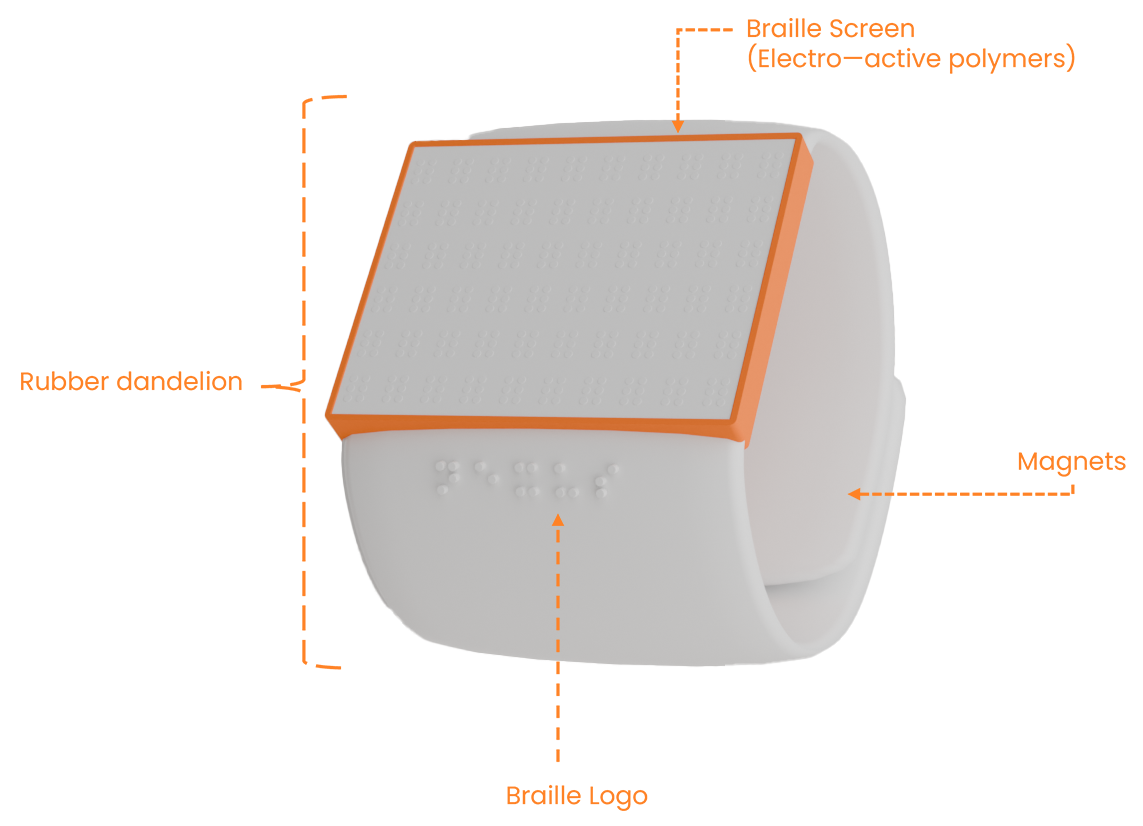
To protect the privacy of visually impaired smartphone users, a digital braille watch, developed with electro-active polymers, will be designed to allow easy and private smartphone navigation. The watch will translate text from the phone into braille on the user's wrist. Additional accessibility features, such as weather updates, time display, and the ability to send quick responses using hand gestures and haptic notifications, will also be included.
This device targets visually impaired individuals of any age who struggle with existing smartphone accessibility features, offering a confidential and safe option to voice systems that allows for independent and confident device use.
#E7E7E7
#F7A669
#FF8225
#444444
#040404
The user controls the screen with gestures from the hand wearing the watch, while the other hand reads the braille display. As they navigate, the screen updates in real-time, allowing them to feel changes and interact smoothly.
Users can navigate screens by sliding their index finger over their thumb: towards themselves for the next screen and away for the previous. When switching screens, the braille nodes will lower, and the device will vibrate once to confirm the action.
To start the device, the user places their index and thumb in the center of the interface, moving the index finger to the top and the thumb to the bottom. The device will vibrate twice to confirm it's on, with braille dots moving in a synchronized wave. 'Nexus' will display for 5 seconds, followed by a welcome message, before the dots lower and the home screen appears.
To power off, the user places their index at the top and thumb at the bottom of the interface, moving the index down and thumb up simultaneously. The device will vibrate twice, followed by a synchronized wave of braille dots and a 5-second goodbye message before the dots descend.
When the watch is first powered on, the welcome screen greets the user with a personalized message, displaying "Hello [Username]." The watch automatically retrieves the user's name by syncing with their Google or iCloud account via Bluetooth, which is linked to their smartphone.
At the top, the digital time and current weather are synced from the user's smartphone, followed by the notification count. The settings option is at the bottom. Notifications and settings can be accessed by double-tapping the corresponding braille.
The settings screen on the watch is intentionally straightforward, featuring just two essential options: Bluetooth and Braille Height. This minimalist design ensures ease of navigation and quick access to the watch's core functionalities, optimizing the user experience for efficiency and simplicity.
Users can customise their device by adjusting the height of the braille displayed on the screen. The braille height ranges from Level 1 (lowest) to Level 3 (highest). To choose a height, users simply double-tap on the braille corresponding to their desired level.
Bluetooth on the device is always enabled. Users only need to select the device to connect their Nexus. After setup, the watch auto-reconnects when in range. If the connection is lost, users can manually reconnect via Bluetooth settings. A sighted interface is available for additional help.
The welcome screen opens up with an animation which resembles the motion of the braille capsules when the watch is turned on. This is followed with a welcome message and the Nexus logo animation.
The user will be instructed to connect their smartwatch to another device before moving on in the onboarding process.
A personalisation feature available to users is the option to increase or decrease the height of their braille capsules at any time without having to go into settings.
Users have access to 9 quick responses shortcuts which can be triggered through hand gestures made on the wearing wrist's hand. Quick responses avaialble to users are: hello, goodbye, yes, no, I love you, good luck, ok, phone me and a fist gesture to send their message.
The home screen consists of the current date, time, weather conditions, notifications and settings.
The notifications screen can be accessed by pressing orange notifications button in the centre of the watch's interface. From here they are able to view their messages as well as send quick responses.
The settings screen can be accessed by pressing the gear icon on the bottom left of the watch's interface. From here users can view their connected devices, connect to additional devices through Bluetooth and adjust their braille height settings.